Part 2 of 4 · Mid-morning
Dashboards and Alerts
Build the panel last night's post-mortem said you needed.
A post-mortem email lands. Last night's page lost ten minutes because a flap-rate panel didn't exist yet. You build it now — thresholds matching the actual alert rule, while the team is still in the room and your senior is at your shoulder. Dashboards and alerts are two faces of the same operational decision: the threshold you set on this panel is the same one Part 3's alert rule fires on.
You're back from the short break. The team standup is wrapping in the next room. Your senior slides their laptop across with an email open on it.
From: oncall@example.com
Subject: Post-mortem action — flap-rate panel

Yesterday's page was BgpSessionNotUp on srl1, 10.1.99.2.
We could see BGP was wobbly but couldn't see WHY without
scrolling. Standby lost about ten minutes recognising the
flap shape. Need a flap-rate panel on Workshop Lab so the
next page lands with the right view already on screen.
Whoever's free, take it.
Your senior taps the screen. "Last night's page. Read it. Standby lost ten minutes because a flap-rate panel didn't exist yet. The post-mortem decided it should. Would you take this? You've got 40 minutes — the panel needs to be on Workshop Lab 2026 with thresholds matching the actual alert rule, so when someone gets paged on this shape next time, the view's already there."
A "flap" is an interface bouncing up and down in quick succession. The flap-rate panel counts UPDOWN log events per interface in a rolling window — a number that climbs fast when something is flapping and sits at the floor when it isn't.
An alert rule here is a small query the lab runs on a schedule, with a "fires if this is true" condition attached — when the condition holds, the lab calls it an active alert. (Full anatomy comes up later when you walk the alert lifecycle — for now, just know it's a query + a firing condition.)
Add one panel to the Workshop Lab 2026 dashboard that answers a real operational question: is this interface flapping right now? You'll wire it to the dashboard's device variable so the same panel works for either device, set thresholds that match the actual alert rule, then drive a flap from the CLI and watch the panel react.
A dashboard is an operational tool, not wall decor. One dashboard, one story. The exercise is small on purpose — by the end you'll know enough to extend any panel in this lab.
Setup check
Reset workshop state (safe to skip if you ran it earlier this morning) and confirm the stack is healthy:
Open Grafana at http://localhost:3000 and navigate to Workshop Lab 2026 (/d/dfb5dpyjbh2wwa). The existing panels you'll see:
- Health summary row — Devices / Interfaces / Firing alerts / Log lines (5m)
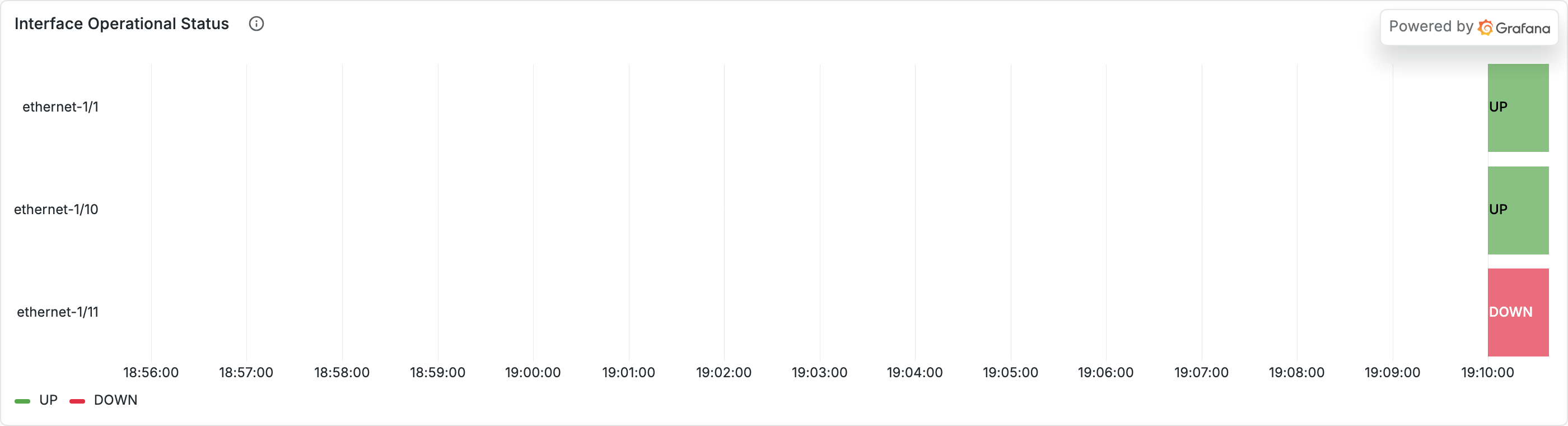
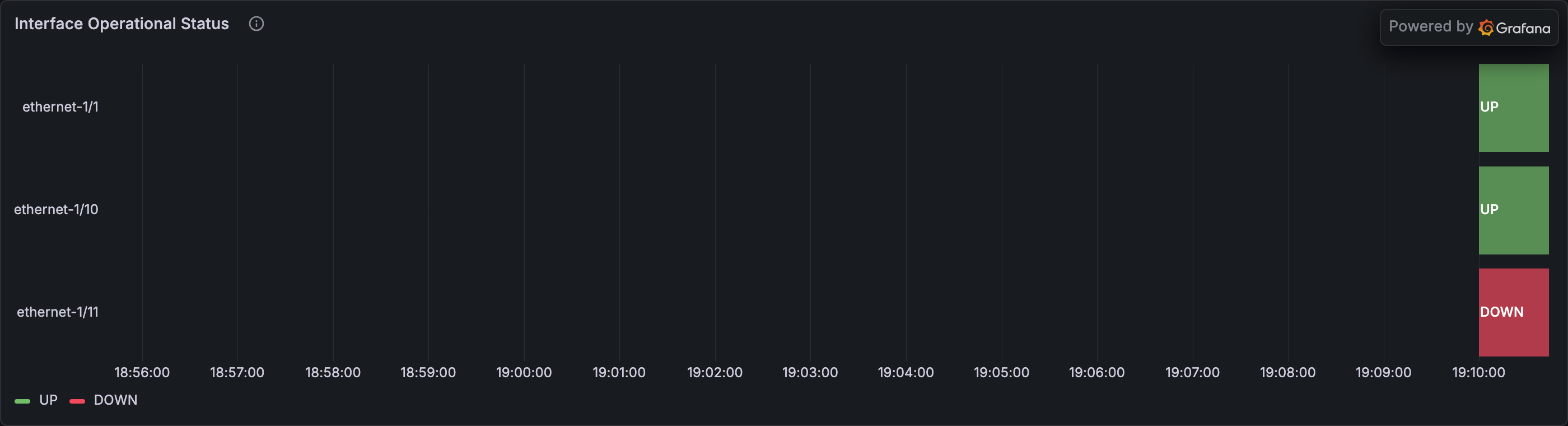
- Interface Admin State and Interface Operational Status — what intent says and what reality says
- Interface Traffic — bandwidth per interface, drawn from
rate(interface_in_octets[...]) - Interface Logs — raw log lines for
$device
At the top of the dashboard there's a Device dropdown — that's the $device dashboard variable (Grafana's UI also calls these "template variables" — same thing; we'll stick with "dashboard variable" in this guide). Toggle it between srl1 and srl2 and watch every panel re-query.
Your senior glances at the screen. "Notice the dashboard didn't break when you toggled. That's the variable doing its job. Every panel here uses
$device— same panel, two subjects."
When you save changes to this dashboard, they stick for the rest of your workshop session — but they don't survive a full restart. If you run nobs autocon5 restart grafana, anything you customised resets back to the original layout the workshop ships with. Treat this dashboard as a scratchpad: experiment freely, but don't expect your changes to be permanent.
Why this happens — the Pre-provisioned dashboards section of the Tour covers the provisioning model in detail.
Build the dashboard panel
You're adding a flap rate panel: how many UPDOWN log events per minute, broken out per interface, with thresholds that match the PeerInterfaceFlapping alert rule.
1. Enter edit mode
"Click Edit, top right of the dashboard. The floating sidebar on the right is where you add things."
Adding a panel in Grafana 13 takes a few clicks:
-
Click Edit (top-right corner of the dashboard). A right sidebar appears with a column of icons — hover each to see its name. From top to bottom they are:
Icon Hover name What it does +Add Add a new panel, row, or dashboard control ⚙ Dashboard options Settings, variables, annotations, links 💬 Give feedback Grafana-internal feedback prompt (ignore) {}Code View the raw dashboard JSON ↓ Export Export the dashboard ≡ Outline Jump to any panel by name -
Click the
+(Add) icon — top of that sidebar. An Add menu opens with Panel, Group layouts (Group into rows, Group into tabs), and Dashboard controls (Variable, Annotation query, Link). - Click Panel. An empty panel lands on the dashboard, and the right sidebar changes to show the new panel's settings — Title, Description, Transparent background, Repeat options.
- Click the big blue Configure button at the top of those settings to open the panel editor — query box at the bottom, panel preview at the top, visualization options on the right.
New to Grafana? The Grafana section of the Tour covers login, the pre-provisioned dashboards, Explore mode, and the restart-resets-your-edits caveat. For Grafana itself — panel editor internals, the time picker, dashboard variables — see the upstream Grafana docs. Keep one open in another tab while you build.
2. Pick the datasource
"What datasource? Think about the data shape — flap rate is a count of log events, not a metric Prometheus is scraping for us."
Choose loki in the datasource picker. Flap rate is a log-derived metric — Loki counts log lines, not Prometheus samples. (Part 1's exercise 11 — log aggregation walks the same count_over_time(...) shape if you want a refresher.)
3. Write the query
"Same shape as the LogQL aggregation we wrote together earlier. UPDOWN log events, grouped per interface, counted in a 1-minute window. Use the dashboard variable so this panel works for both devices."
The query box defaults to Builder mode — a click-to-build form with Label filters and Operations. To paste a raw LogQL query, toggle to Code mode using the Builder | Code switch on the right side of the query toolbar.
In the Loki query box (now in Code mode), paste:
Three things to notice:
$deviceis the dashboard variable. Grafana substitutes it before sending the query, so this panel becomessrl1-aware orsrl2-aware automatically.{device="$device", vendor_facility_process="UPDOWN"}is a stream selector — Loki's way of saying "pick log streams whose labels match these values". The labelvendor_facility_process="UPDOWN"matches every interface state-change log line emitted by either of the two log pipelines the lab runs (direct= sonda pushes the line straight to Loki;vector= the same line passes through a Vector router before landing in Loki — Part 1 walks both).count_over_time(...[2m])counts UPDOWN log lines in a rolling 2-minute window — the same window thePeerInterfaceFlappingalert rule uses.sum by (interface)groups so each interface gets its own line.
Click Run query. Before you trigger any flap, you'll sometimes see a single line for ethernet-1/11 at the value 1 — well below the alert threshold of 3. That interface is wired into the lab as a permanent fault (we'll call it the always-broken interface from here on) so steady-state alerts are always visible. It emits one log line every ~2 minutes, so the panel briefly shows 1 right after each one and drops back to empty in between. Healthy interfaces don't show up at all — if nothing is flapping, the panel stays empty, which is what you want to see:
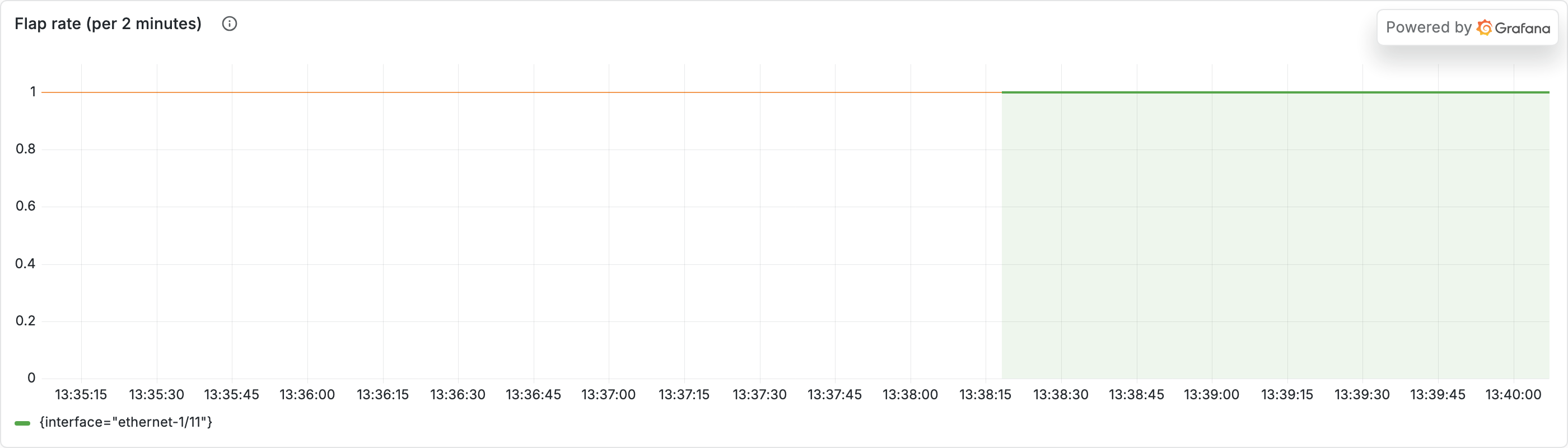
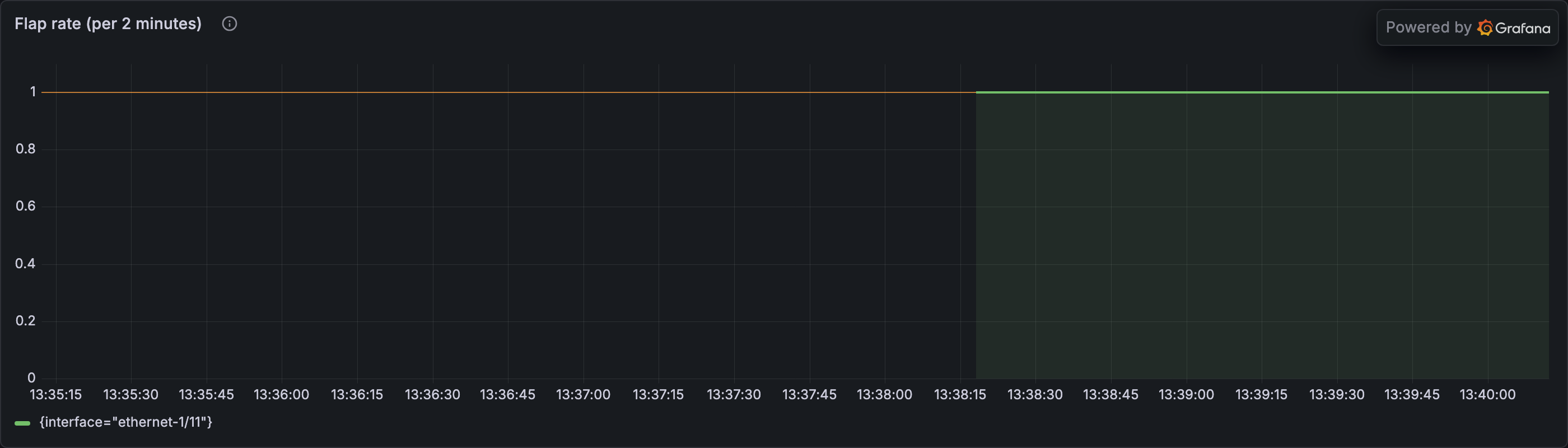
ethernet-1/11 at 1 (the only interface that's actually flapping at rest, because it's broken by design). The other peer interfaces are silent. Anything else here means a real flap is in progress.Empty panel?
Two reasons the panel might look empty:
- The
Devicedropdown above the dashboard isn't set to a real device. Toggle it tosrl1orsrl2. - The broken-interface log emitter fires only every ~2 minutes — the panel goes back to empty between events. Wait a minute or two for the next one to land.
4. Pick the panel type
"Time series for this. Aggregations over time always read better as a line graph than a table."
The right-hand sidebar has two tabs at the top: Suggestions (a curated short list based on your query shape) and All visualizations (the full set). Click All visualizations and pick Time series. (It usually shows up in Suggestions too — either path works.)
5. Title and description
"Title and description matter. The panel needs to tell the next on-call what they're looking at without you being there to explain it."
You can set these in two places — pick whichever is in front of you:
- In the panel settings sidebar before you clicked Configure (the Title and Description fields are right at the top).
- In the panel editor, scroll the right-hand options to Panel options → Title / Description.
Either way, use:
- Title:
Flap rate (per 2 minutes) - Description:
UPDOWN log events per interface in a rolling 2-minute window. Above 3, the PeerInterfaceFlapping alert fires — the panel uses the same window so the red threshold line is the alert condition.
Description shows up as a small i icon on the panel — students hovering it later get the context without leaving the dashboard.
6. Set thresholds that match reality
"Now thresholds. The PeerInterfaceFlapping alert fires when count_over_time over 2 minutes exceeds 3. Match that — when the threshold line moves, the alert is right behind it."
The PeerInterfaceFlapping alert fires when count_over_time({vendor_facility_process="UPDOWN"}[2m]) > 3. Mirror that on the panel so the threshold line is the alert condition:
In the right-hand options pane, scroll down to find the Thresholds section — it's usually about eight sections down, past Panel options, Tooltip, Legend, Axis, and Graph styles. Set:
| Color | Value | What it means |
|---|---|---|
 Green Green |
base (default — keep it) | "everything's quiet" |
 Orange Orange |
2 |
"early heads-up — activity above the always-broken ethernet-1/11 baseline (which sits at 1)" |
 Red Red |
3 |
"alert firing — the PeerInterfaceFlapping rule's > 3 condition has been crossed" |
Then under Graph styles → Show thresholds, pick As lines. You should now see two horizontal lines on the panel preview — orange at 2, red at 3. Setting orange at 2 (rather than 1) keeps the threshold line visually separate from the always-broken ethernet-1/11 line that sits at 1 — they'd otherwise overlap. A flap rate above the red line means an alert is firing.
Your senior glances over. "Thresholds matching the alert rule? Good. When the line crosses the orange one, an interface just logged a state change — that's your early heads-up. When it crosses the red one, the alert is firing and someone's pager goes off. The panel makes both moments visible without a separate alerts pane."
7. Smooth out the gaps
"That
count_over_timequery returns nothing when no logs land in the rolling window. By default Grafana renders those empty stretches as broken lines — easier to read as one continuous line."
In the right-hand options, still in the Graph styles section where you set the threshold lines, find Connect null values and change it from Never to Always.
Now when the 2-minute window briefly has no matching log lines, the panel draws a continuous line through the gap instead of showing disconnected dots. Easier to read at a glance during a flap.
8. Save
Top right of the panel editor, click Save to return to the dashboard. Then click Save (the blue button, top-right of the dashboard) to save your work. Grafana confirms Dashboard saved. The new panel is now part of Workshop Lab 2026. Use Exit edit next to it when you're done editing for the session.
9. Drive a flap
"OK. Panel's there. Doesn't mean anything until we see it react. Drive a flap."
In a terminal:
This kicks off a 4-minute cascade — a scripted sequence of state changes the lab plays back to imitate a real incident. For this command the interface cycles 30s up, 60s down for four minutes. UPDOWN log lines emit at a steady cadence (~one every two seconds) during each down window. Switch the dashboard's Device dropdown to srl1 if you aren't already there.
Turn on auto-refresh so the panel updates live
By default the dashboard only re-queries when you reload it. To watch the flap climb in real time, click the circular arrow icon at the top-right of the dashboard (next to the time-range picker) and pick 5s from the dropdown. The panel will re-query every 5 seconds — fast enough to catch the cascade as it unfolds, slow enough not to hammer the backends. Set it back to Off when you're done.
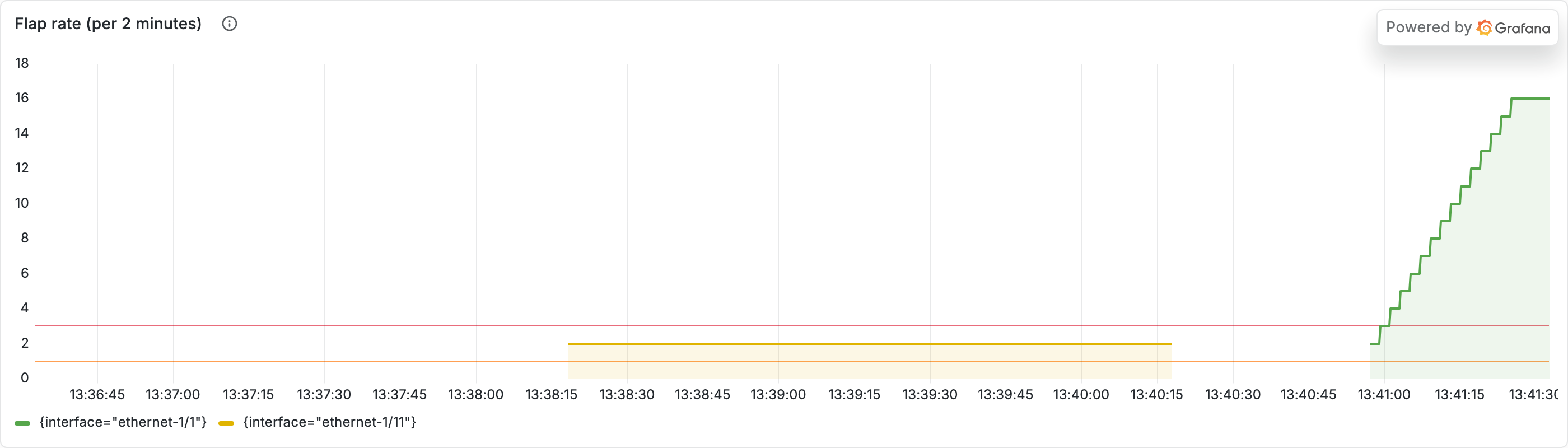
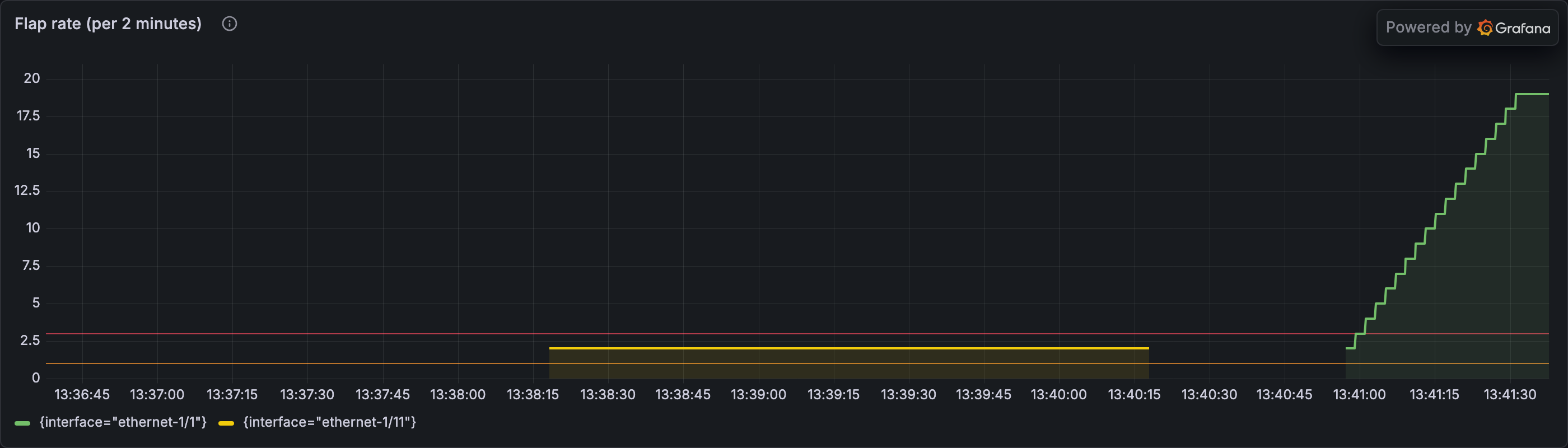
ethernet-1/1, climbing fast past the orange threshold (2) and through the red threshold (3) on its way to 16+. You may also see a faint yellow series line for ethernet-1/11 at 1–2 (that's the Grafana-assigned color for that interface, not a threshold) — the broken-interface log emitter fires at random intervals (roughly once every 2 minutes), so it isn't always inside the 2-minute window the panel is counting. Either way, the flapped interface is the obvious anomaly against an otherwise quiet panel.What you should see, in order:
- First ~45 seconds are quiet. The cascade starts the interface in the up state and walks through one 30-second up phase before the first down phase begins. UPDOWN log emission begins ~10 seconds into the down phase.
- Around t+60s: a line for
interface=ethernet-1/1appears at around10. It's already past both the orange (2) and red (3) thresholds — the down phase's emission rate (~one log every two seconds) means the rolling 2-minute count climbs fast. - Around t+90s: the line is somewhere in the
25–40range — well above red, matching the alert rule's "> 3 events in 2 minutes" condition many times over. - Between cycles 1 and 2: the line plateaus around
25rather than dropping. The rolling 2-minute window still contains the events from cycle 1's down phase — they haven't aged out yet. - Cycle 2 around t+120s: cycle 2's down-phase events stack onto the still-in-window events from cycle 1, so the count climbs higher — typically
40–60. The plateau-then-climb shape is what real flap-rate dashboards look like during an active flap.
Your senior taps the screen. "Watch the orange line — that's the early heads-up, an interface just logged a state change. Watch the red line — that's where someone's pager goes off because the alert rule fired. The panel makes both moments visible without a separate alerts pane."
Stop and notice. This is the same query pattern that drives the PeerInterfaceFlapping alert in Part 3. The panel isn't decoration — it's a visual representation of the rule that's about to fire. When the on-call gets paged, this panel is what they look at first.
10. Switch device variable
"Now the proof that the variable was worth it. Toggle to srl2 and drive a flap there. No editing the panel — the dashboard does the work."
Toggle the Device dropdown to srl2. The flap-rate panel re-queries and now shows srl2's steady-state — mostly silent, with at most a single tick from the always-broken ethernet-1/11 every two minutes. Same as srl1 before you triggered its flap.
Trigger:
Watch the spike land on srl2's ethernet-1/10 line — same ramp shape, same threshold crossings, same recovery — without you editing the query.
Stop and notice. One panel, two devices. That's what the dashboard variable bought you. If you'd hard-coded device="srl1" in the query, you'd need a duplicate panel for every device you ever add — and one to maintain per device when the schema changes.
Worth noting: srl1 and srl2 arrive through different upstream pipelines (gNMI vs SNMP) — meaning the raw metric names and labels their devices emit look completely different. The lab normalises them in a layer above (renames the fields, re-keys the labels) so by the time your panel queries either device, they look identical. That's why the same $device variable works for both. The fold below walks the full normalisation pipeline if you want to see it end-to-end.
Bonus — same panel, two pipelines
srl1's metrics emit as raw gNMI shapes (srl_* field names) and Telegraf-srl1 normalizes them; srl2's metrics emit as raw SNMP shapes (ifHC*, bgpPeer*) and Telegraf-srl2 normalizes them. By the time your panel queries them, both look identical — same metric names, same label keys. Hover the Collection Type panel on the Device Health dashboard to see which raw shape each device came in as.
See it yourself — five URLs walk the three layers of each pipeline:
- Raw gNMI from srl1 (sonda-server, before Telegraf): http://localhost:8085/scenarios/metrics?label=source:srl1. Look for
srl_*metric names (srl_interface_oper_state,srl_bgp_oper_state) and thesource="srl1"tag — what an SR Linux device emits on its gNMI stream. - Raw SNMP from srl2 (sonda-server, before Telegraf): http://localhost:8085/scenarios/metrics?label=agent_host:srl2. Look for the IF-MIB / BGP4-MIB names (
ifHCInOctets,bgpPeerState,cbgpPeerOperStatus) and theagent_host="srl2"tag — the classic SNMP shape. - Telegraf-srl1's normalized output: http://localhost:9005/metrics. The
srl_*names are now plaininterface_*/bgp_*, and thesourcetag has been renamed todevice. Same data, canonical shape. - Telegraf-srl2's normalized output: http://localhost:9006/metrics. The SNMP names (
ifHCInOctets, etc.) are now alsointerface_*/bgp_*, andagent_hostis nowdevice. Identical to telegraf-srl1's output above — except for one label we keep on purpose:collection_type=gnmivscollection_type=snmp, so you can debug which pipeline a sample came from. - Final view in Prometheus: http://localhost:9090/graph?g0.expr=interface_oper_state%7Bdevice%3D~%22srl1%7Csrl2%22%7D&g0.tab=1. A single query for
interface_oper_state{device=~"srl1|srl2"}returns rows from both devices in the same shape — the vendor difference is invisible at this layer.
Your senior nods at the screen. "That's the panel. Six hours from now when somebody on the rotation gets paged on a similar shape, this view is on screen the moment they open the dashboard. Ten minutes saved off the next triage. That's the work."
Walk the alert lifecycle
You've made the panel react to a flap. The line crossed the orange and red thresholds; visually you got both the early heads-up and the page moment. Now the question every on-call asks themselves at 02:14: did anything else actually fire? Where does that information live, and what happens to it next?
This walk uses every observability surface the workshop already has running — CLI, Alertmanager UI, Grafana — to follow the alert from rule match → firing → silence → resolved.
Heads-up: this section is foundational for Part 3. Take the 10 extra minutes here and Part 3's automation walk will feel obvious. Skip it and Part 3 will refer back here anyway.
1. The rule, live
The PeerInterfaceFlapping rule you mirrored in the panel hasn't been hypothetical — it's been running against the same set of UPDOWN log lines you queried in the panel, this whole time. Expand the fold below for the full yaml anatomy and where the rule lives in the repo; what matters for this walk is when it fires.
What's an alert rule? — yaml anatomy and where to see it
An alert rule is five pieces of YAML that together say "watch this; fire if this holds; tag the alert this way; describe it like this." Let's break it down:
- A query — the thing the rule keeps re-evaluating against your metrics or logs.
- A firing condition — what makes the query "true" (e.g.,
> 3 events in 2 minutes). - An optional
for:duration — how long the condition must hold before the rule actually fires. Filters out blips that come and go. - Labels — key/value pairs attached to every firing instance, used downstream for routing and filtering.
- Annotations — human-readable text that travels with the alert into notifications. (Don't confuse these Prometheus rule annotations with the alert markers you'll add to a dashboard panel in step 4 of the next section — different system, same word; we'll come back to this.)
The thing that runs the rule on a schedule and decides when it's "matching" is called the rule evaluator — Prometheus has one for its PromQL-based rules, Loki has one (called the Loki ruler) for its LogQL-based rules.
Here's the PeerInterfaceFlapping rule the thresholds you set on the panel are mirroring:
- alert: PeerInterfaceFlapping
  expr: sum by(device, interface) (count_over_time({vendor_facility_process="UPDOWN"}[2m])) > 3
  for: 30s
  labels:
    severity: critical
    source: loki
    environment: network-observability-lab
    device: '{{ $labels.device }}'
    interface: '{{ $labels.interface }}'
  annotations:
    summary: "[NET] Flapping interface in {{ $labels.device }}/{{ $labels.interface }}"
    description: "The interface {{ $labels.device }}/{{ $labels.interface }} is flapping"
expr— the firing condition. The same LogQL query the panel uses, with> 3appended. When the expression returns at least one series, the rule is matching.for: 30s— the condition must hold continuously for 30 seconds before the alert moves frompending(rule has matched but the duration hasn't elapsed) tofiring(notification dispatched). Filters out transient noise.labels— attached to every firing instance.severityandsourceare what Alertmanager routes on;device/interfacepropagate the offending instance's identity through to the page.annotations— human-readable text rendered into notifications.{{ $labels.x }}interpolates from the firing series' labels.
Where to see this rule live. Loki has its own rule evaluator — the Loki ruler, a component inside Loki that runs LogQL-based alert rules on a schedule, mirroring what Prometheus does for PromQL rules. PeerInterfaceFlapping is evaluated by the Loki ruler, not Prometheus, so it does NOT show up on Prometheus /alerts:
- When firing: Alertmanager — the Loki ruler pushes alerts here just like Prometheus does. Loki-evaluated rules and Prometheus-evaluated rules land in the same queue.
- Always: the rule lives in the repo at
workshops/autocon5/loki/rules/alerting_rules.yml— that link jumps straight to thePeerInterfaceFlappingdefinition. There's no equivalent UI to Prometheus/alertsfor Loki-defined rules — the Loki ruler doesn't ship one. The Prometheus alerts page in the Tour shows what that UI looks like for the rules Prometheus does evaluate.
Part 3 walks the full lifecycle — alert fires, Alertmanager routes, webhook hands off, Prefect flow decides what to do.
Two transitions to keep in mind as you watch the rule fire:
- Match ≠ firing. The query returning a series means the condition is true right now — but with
for: 30sset, the alert sits inpending(matched, but not firing yet) for 30 seconds first. Only if the condition holds for the full 30s does it promote tofiring. - Resolved is also an event. When the condition stops being true and stays gone, the alert flips to
resolvedand (after Alertmanager'sresolve_timeout— the grace period it waits before treating the alert as definitely gone, default 5 min) ages out of the active alerts list.
You flapped srl1/ethernet-1/1 a minute ago. The condition is matching. After 30s it'll be firing. Let's confirm.
2. Inspect alerts from the CLI
The lab ships a small CLI that prints the current alert state in a table — same data Alertmanager has, just rendered for terminal use:
Give the cascade ~90 seconds from when you ran
flap-interfacebefore you expect thePeerInterfaceFlappingrow to appear. The count crosses> 3after the first down phase, and the rule'sfor: 30sclause then has to hold before the alert promotes frompendingtofiring. If you check too early, you'll see only the four steady-state rows.
You'll see five rows once the alert fires. Before you look at them — a quick map of what to expect, because the lab is wired with a couple of always-firing alerts on top of whatever you just triggered. Two tiers:
- Steady-state alerts — always there, every time you walk this lab:
InterfaceAdminUpOperDown × 2—ethernet-1/11on each device is wiredadmin upbut itsoperstate isdown(the always-broken interface from step 3). The rule matches continuously; it never ages out.BgpSessionNotUp × 2— two deliberately broken BGP peers (srl1 → 10.1.99.2,srl2 → 10.1.11.1). Same shape: the rule matches continuously. Part 3 picks these up and acts on them.
- Transient alerts — appear when something happens, age out when it stops:
PeerInterfaceFlapping— fires when your flap's rolling 2-minute count crosses> 3. Severitycritical, scoped to the specific interface (srl1/ethernet-1/1if you flapped that). Resolves and ages out within ~5 minutes after the cascade ends.
Now run the command and read the output:
| Alertname                | Severity | Device / target  |   State |  Age |
| InterfaceAdminUpOperDown | warning  | srl1             |  firing |  ... |
| InterfaceAdminUpOperDown | warning  | srl2             |  firing |  ... |
| BgpSessionNotUp          | warning  | srl1 → 10.1.99.2 |  firing |  ... |
| BgpSessionNotUp          | warning  | srl2 → 10.1.11.1 |  firing |  ... |
| PeerInterfaceFlapping    | critical | srl1 → ethernet-1/1 |  firing | 30s |
Four steady-state rows + one transient — and the last column (Age) tells you which is which at a glance: ... (long-running) vs 30s (new).
Your senior glances at the screen. "Two-tier shape — the always-broken stuff sits there forever, and the things you actually want to know about come and go. Both are useful. The always-broken alerts tell you the lab knows about a problem someone hasn't fixed. The transient ones tell you something happened just now."
3. Inspect alerts in the Alertmanager UI
Open http://localhost:9093/#/alerts. This is the central queue every rule evaluator (the Loki ruler for LogQL-based rules, the Prometheus rule evaluator for PromQL-based rules — both defined in step 1's fold above) pushes firing alerts into.
What to look at:
- The alerts list — same rows you saw from the CLI, grouped by label set. Click any row to expand and see all its labels (
device,interface,severity, …) and annotations (summary,description). - The filter box at the top — paste
alertname="PeerInterfaceFlapping"to scope down. Filters use the same label-matcher syntax as PromQL/LogQL selectors. - The generator URL on an expanded alert — the link back to the rule that fired this alert. For
PeerInterfaceFlappingit points at the Loki ruler's evaluation. - The Silences tab in the top nav — currently empty. You'll create one in step 6.
4. See alerts in Grafana — and overlay them on your panel
Prometheus exposes alert state as a metric. In Grafana Explore, pick the prometheus datasource and paste:
Every currently-firing alert returns a series with value 1 and labels copying the alert's alertname / severity / etc. Filter further:
This is how dashboards surface alert state — the Currently firing alerts panel on the Workshop Home dashboard (/d/workshop-home) queries this exact metric and renders it as a table. Same data, different surface.
There's a second way to put ALERTS to work on a dashboard: as an alert marker that shades the panel during the exact minutes the alert was firing. That makes the rule's firing window and the panel's threshold crossing line up visually on the same plot.
Naming heads-up: 'alert marker' = Grafana 'annotation'
Grafana's UI calls this feature annotations — confusingly, the same word the Prometheus alert rule yaml uses for its annotations: block (the human-readable text travelling with each firing alert; you saw that in step 1's fold). They're two different systems that happen to share a name. To avoid the collision, this guide uses alert marker when we mean the Grafana panel overlay, and annotation only when you literally need to type the word in Grafana's UI. (Part 3 uses audit record for the workflow's Loki log lines — a third related-but-different concept.)
Add one now (Grafana 13 split the alert-marker editor across a right-panel pane and a query-editor modal — both steps are below):
- Click Edit (top-right of the dashboard). The right sidebar appears.
- In the sidebar, click Dashboard options (gear icon — hover tooltip says "Dashboard options"). The right panel switches to a settings view.
- Scroll the right panel down to the Annotations section (this is Grafana's UI label — what we're calling alert markers). Click Add annotation query.
-
The right panel now shows the new alert marker's outer settings. Fill in:
Field Value Name PeerInterfaceFlapping firingColor red (or any colour you like) Show annotation controls in Above dashboard(default)Show in All panels(default) -
Click Open query editor (blue button under the Query sub-heading). A modal titled Annotation Query opens. Fill in:
Field Value Data source prometheusQuery (PromQL input) ALERTS{alertname="PeerInterfaceFlapping", alertstate="firing"}Title {{alertname}}Text {{device}}/{{interface}}The double-brace syntax in Title and Text is Grafana's template interpolation: at draw time, Grafana replaces
{{alertname}}with the firing alert'salertnamelabel value,{{device}}with itsdevicelabel, and so on. The hover tooltip on each marker ends up reading something like "PeerInterfaceFlapping — srl1/ethernet-1/1" instead of the raw template text. -
Click Test annotation query in the modal. If a flap-driven firing exists in the time window, you'll see one or more events listed. If you flapped 5+ minutes ago and the alert has resolved, "No events found" is also fine — the marker will pick up the next firing.
- Click Close to dismiss the modal.
- Click Save (top-right of the dashboard), then Exit edit.
A toggle now appears in the dashboard header: PeerInterfaceFlapping firing, enabled. Drive another flap:
Wait ~90 seconds (rule needs > 3 events in 2 minutes plus the for: 30s clause). Your Flap rate panel climbs past the red threshold — and on the same panel, a red shaded vertical region appears spanning the exact minutes PeerInterfaceFlapping was firing. Hover the region: the tooltip shows the device and interface from the alert's labels (srl1 / ethernet-1/1).
Your senior nods. "Now the panel doesn't just visualise the condition — it tells you when the rule actually said yes. Threshold lines tell you what *should trigger a page; alert-marker regions tell you when it actually did. Both on the same plot."*
Two ways to read this once you have it on every panel:
- During triage: a glance at the panel tells you whether the page that woke you up is the same page someone got 30 minutes ago. The alert-marker regions are the historical record of the rule firing alongside the underlying metric shape.
- When tuning thresholds: if a rule fires too often (or not enough), comparing the alert-marker regions against the panel data is how you decide whether to move the threshold, widen the rolling window, or extend the
for:clause.
(To scope the marker to a single panel instead of All panels, set Show in → Selected panels and pick the panel — useful when a marker only makes sense for one panel's question.)
5. What's a silence?
A silence is a per-label-set mute applied at the Alertmanager layer. It has four pieces:
- Matchers — label key/value pairs (regex allowed). Any active alert whose labels match all matchers is silenced.
- Duration — how long the silence is active. Auto-expires after.
- Creator — username, for audit.
- Comment — free text. Why the silence exists. Always write one in production.
What a silence does not do: stop the rule from matching. The condition is still being evaluated and the alert is still active in the rule evaluator's state. The silence only stops the notification path. The matching alert is marked suppressed in the Alertmanager UI and carries silenced_by=<silence-id> in its metadata.
This distinction matters: silencing isn't fixing. It's saying "we know about this, stop paging us about it for the next N minutes." The rule keeps watching; the page just doesn't fire.
6. Create a silence by hand
We'll silence one of the always-firing InterfaceAdminUpOperDown alerts. Safe target — silencing it doesn't break anything in the lab, and seeing it flip from firing to suppressed is the whole point of this step.
- Open Alertmanager at http://localhost:9093/#/silences (the Silences tab) → New Silence.
- Add matchers (click + Add matcher for each):
alertname=InterfaceAdminUpOperDowndevice=srl1
- Duration:
5m. - Creator: your name or
workshop. - Comment:
Testing silences in workshop. - Click Confirm.
Return to the Alerts tab. The InterfaceAdminUpOperDown(srl1) row now shows as suppressed, not firing. Click it — labels and annotations are unchanged, but a new silenced_by field carries the silence ID. From the terminal you can confirm the same transition: re-run nobs autocon5 alerts and the row's State column now reads suppressed instead of firing — same data, two surfaces.
Now flip it back: in Silences, find your silence, click Expire. Refresh Alerts — the row is back to firing.
"That's the dance the on-call does every time something fires while a known maintenance is in progress. Whoever takes the alert clicks Silence, picks the right matchers, sets a duration, writes a comment. The rule keeps watching, the pager stops yelling, the audit trail shows who silenced what and why."
7. The lifecycle in one diagram
   rule starts matching
            │
            ▼
        pending   ◄── for: 30s — the condition must hold this long first
            │
            ▼ (30s elapsed)
         firing   ◄── notifications go out (webhook, email, …)
            │
       ┌────┴────┐
       │         │
       ▼         ▼
  suppressed   resolved
  (silence    (condition
   applied)    stopped matching)
       │              │
       ▼              ▼
  (silence       (if the condition
   expires)      starts matching
       │         again, the alert
       ▼         re-enters `pending`)
     firing  ─── continues until condition resolves
Three transitions every alert can make — and resolved isn't a dead end: if the condition starts matching again later, the alert re-enters pending and the cycle restarts. Memorise this shape, it's the same on every alerting stack worth using.
Why has BgpSessionNotUp been sitting in firing this whole time? — preview of Part 3
BgpSessionNotUp has been sitting at firing for both devices the whole time you've been on this dashboard. They never resolved because the broken peers are deliberately broken — the lab keeps them that way as a steady-state target. In Part 3, a workflow (a small program that runs automatically when an alert fires) picks these alerts up via an Alertmanager webhook (an HTTP call Alertmanager makes to a configured URL every time an alert fires, so external systems can react to it), decides whether each one deserves human attention or can be silenced automatically, and applies the silence programmatically — exactly the same firing → suppressed → firing cycle you just walked by hand. Part 3 explains what the workflow is, how it's triggered, and what its decision policy looks like.
For now: you've seen the full alert surface. CLI, Alertmanager UI, Grafana ALERTS metric, manual silence. That's the substrate Part 3 builds on.
Stretch goals (optional — pick one if you have time)
Extend the Interface Traffic panel with a per-device aggregate
The existing Interface Traffic panel draws one line per interface. Add a second query that draws a single device-wide total on the same panel, styled so it visually stands out from the per-interface lines.
Solution — steps + what the panel looks like after
Open the Interface Traffic panel in edit mode. The per-interface queries already in the panel multiply by * 8 to convert bytes/s into bits/s — anything you add must do the same or it'll render 8× smaller than the existing lines.
1. Add the aggregate query. Click + Add query below the first query. Paste the in+out aggregate, with the same unit conversion and the same rate window as the existing queries:
sum(rate(interface_in_octets{device="$device"}[$__rate_interval])) * 8
  + sum(rate(interface_out_octets{device="$device"}[$__rate_interval])) * 8
2. Name the new series so the override can target it. Below the query, in the per-query Options row, set Legend to Custom and type Summary in the field next to it. Without this step Grafana auto-names the series from its labels, which makes the next step harder — you'd have to target a label-based name like {} instead of a stable, friendly one.
3. Make it visually stand out. In the right-hand options panel, scroll to Overrides → + Add field override → Fields with name → pick Summary from the dropdown. Then click + Add override property (once per property) and add:
- Graph styles → Line width:
3(thicker than the per-interface lines) - Graph styles → Line style:
Dash(or pick a distinct colour instead — whichever reads more cleanly on your screen)
What the panel should look like after. Two queries in the panel, both multiplied by * 8 (bits/s):
| Query | Expression | Legend |
|---|---|---|
| A (existing — in) | rate(interface_in_octets{device="$device"}[$__rate_interval]) * 8 |
(auto) |
| A (existing — out) | rate(interface_out_octets{device="$device"}[$__rate_interval]) * 8 |
(auto) |
| B (new) | sum(rate(interface_in_octets{device="$device"}[$__rate_interval])) * 8 + sum(rate(interface_out_octets{device="$device"}[$__rate_interval])) * 8 |
Summary (custom) |
Plus one Override on Fields with name = Summary:
- Graph styles → Line width:
3 - Graph styles → Line style:
Dash(or a distinct colour)
Result on screen: per-interface in/out lines tracking around ±50–100 kb/s, plus one thicker dashed Summary line sitting above them at roughly the absolute sum of the others.
Build a flap-history table with drill-through
Your senior leans back in. "Time-series tells you the shape. A table tells you the list — which device, which interface, how many flaps, click here to investigate. Build the second one. Make the device column a link into Device Health so a click takes you straight to the right view."
Add a second panel: a table that summarises flap activity per device + interface over the last hour, with the device column as a clickable link into the Device Health dashboard, preserving the time window. This is the densest stretch goal — budget ~20 minutes if you're new to Grafana table panels, transformations, and data links. The Grafana section of the Tour is a good companion tab while you work through it.
Solution — full 8-step build + what the table looks like after
1. Add the panel. Back on the Workshop Lab 2026 dashboard: click Edit, click the + in the right sidebar, click Panel, then click Configure in the panel settings that appear. Pick the loki datasource.
2. Write the query. Toggle the query box to Code mode (the Builder | Code switch on the right of the query toolbar). Paste:
A 1-hour window is "what's been flapping today" — wider than the 2-minute alert window so the table holds stable rows even between flaps.
Below the query box, expand Options and switch Type from Range to Instant. For a table, we want one row per device + interface pair — not one row per time sample. Instant returns the most-recent value per series; Range would return a row per scrape interval, multiplying the table by 50× without adding signal.
Click Run query.
3. Switch the panel type. On the right-hand sidebar, click the All visualizations tab and pick Table. The result lands as a single-row table with a value column and the labels mashed into one cell — that's because Loki returns time-series-shaped data and the table needs help turning labels into proper columns.
4. Reshape with transformations. Below the query box, click the Transformations tab → Add transformation. A search dialog opens with every available transformation as a tile.
- Pick Labels to fields. Each Loki label (
device,interface) becomes its own column. - Add a second transformation (click Add another transformation): Organize fields by name. Hide
Time(click the eye icon next to it — the table doesn't need it), reorder sodeviceis first andinterfacesecond, and renameValue #AtoTotal flapsin the rename input next to that row.
You should now see one row per device + interface pair, with three clean columns: device, interface, Total flaps.
5. Title and description. Right-hand options → Panel options:
- Title:
Flap history (last 1h) - Description:
UPDOWN events per device + interface over the last hour. Click any device cell to drill into Device Health for that device, time range preserved.
6. Colour-code the flap counts with a gauge. A glance at the table should tell you which rows are quiet and which are alarming without reading numbers. Right-hand options → Overrides → Add field override → Fields with name → pick Total flaps. Then click Add override property (once per property) and add:
- Cell options → Cell type:
Gauge - Cell options → Gauge display mode:
LCD gauge(the retro pixel-bar style — coloured stripes that fill horizontally) - Standard options → Min:
0 - Standard options → Max:
100 - Thresholds (set them inside this same override): Green base, Orange at
30, Red at60
The threshold numbers are higher than the 2-minute flap-rate panel above because this table uses a 1-hour window: the always-broken interfaces alone accumulate around 28 UPDOWN events per hour just sitting there. So below 30 is "background noise", 30–60 is "something extra is happening", and 60+ is "real flap activity in the last hour".
Each row's Total flaps cell now renders as a horizontal LCD bar that fills green → yellow → red as the count climbs. At-a-glance triage without reading numbers.
7. Make the device cell a link. Still in the right-hand options, scroll to Overrides → Add field override → Fields with name → pick device. On the override:
- Cell options → Cell type:
Auto(orColor textif you want the link visually distinct). - Data links → Add link:
- Title:
Open Device Health for ${__value.text} - URL:
/d/c78e686b-138b-4deb-b6ae-3239dc10a162?var-device=${__value.raw}&from=${__from}&to=${__to}
- Title:
${__value.raw} is the cell's raw label value (srl1, srl2). ${__from} and ${__to} are the dashboard's current time-range bounds — the link carries the window forward so the destination dashboard opens on the same minutes you were just looking at.
8. Save and try it. Apply, then Save dashboard. Trigger a flap:
Within a minute, a row for srl1 / ethernet-1/10 shows up with a climbing Total flaps count. Click the srl1 cell. Grafana jumps to Device Health, scoped to srl1, on the same time range you were on.
What the table should look like after. Three clean columns (no Time, no Value #A — those got hidden / renamed by the Organize-fields transformation), four rows at rest:
| device | interface | Total flaps |
|---|---|---|
| srl1 | ethernet-1/1 | (number with horizontal LCD bar) |
| srl1 | ethernet-1/11 | ~28 (mostly green bar) |
| srl2 | ethernet-1/10 | (number with horizontal LCD bar) |
| srl2 | ethernet-1/11 | ~28 (mostly green bar) |
Visual cues:
- The
devicecells are blue underlined links. Clickingsrl1takes you to Device Health withvar-device=srl1and the dashboard's current time range carried forward. - The
Total flapscells render as horizontal LCD gauges that fill green → orange → red as the count grows. Background noise (always-broken interfaces) sits around 28 (mostly green). An actively-flapping interface climbs past 60 in a few minutes and goes mostly red.
Stop and notice. Tables are the dashboard equivalent of "a list of things to investigate, each row a one-click entry into deeper context". The time-series panel above tells you something is flapping. The table tells you which one, how badly, and here's the next dashboard. The data-link override is what binds the two dashboards into one navigation flow — no copy-pasting device names, no losing the time range.
Group the dashboard into tabs
The eight panels on Workshop Lab 2026 are a lot to scroll past when you're triaging at 2am. Use Grafana 13's new Group into tabs feature to split the dashboard into a few tabs so each one answers one operational question instead of showing everything at once.
Solution — steps + what the dashboard looks like after
Grafana 13's Group into tabs works like browser tabs: only the active tab's panels render, so the page feels lighter and the queries run faster.
In Edit mode, click + in the right sidebar, then Group into tabs. Drag panels into each tab using the layout below — a useful split for a real on-call:
| Tab | Panels to include | What this tab answers |
|---|---|---|
| Overview | Devices · Interfaces · Firing alerts · Log lines (5m) | "Is anything wrong right now?" |
| Interfaces | Interface Admin State · Interface Operational Status · Interface Traffic · Interface Logs | "What's the state of the device's interfaces?" |
| Flap | Flap rate (per 2 minutes) · Flap history (the table you built above, if you did the table stretch goal) | "Which interface is flapping and how badly?" |
Save the dashboard. Click between the tabs and check:
- Overview shows the four stat panels (Devices · Interfaces · Firing alerts · Log lines).
- Interfaces shows Interface Admin State · Interface Operational Status · Interface Traffic · Interface Logs.
- Flap shows your Flap rate panel (and Flap history if you also did the table stretch goal).
Drive a flap (nobs autocon5 flap-interface --device srl1 --interface ethernet-1/1) and click into the Flap tab — the view is exactly what an on-call would open on a PeerInterfaceFlapping page.
If a panel ended up in the wrong tab, drag it between tabs while in Edit mode. The provisioned YAML resets the layout on nobs autocon5 restart grafana, so don't worry about breaking anything permanently.
Stop and notice. Tabs only change how the dashboard is laid out — the panels and queries themselves don't change. What changes is which questions the dashboard answers when you open it. The Overview tab is for "is anything wrong"; the Flap tab is for "show me the symptom" — different operational questions, same dashboard, same data. Building this split before an incident means the page lands and the right view is already there.
What you took away
- Dashboard variables (
$device) make one panel work across many subjects. Always prefer a variable over hard-coding a label value. - Log-derived metrics (
sum(count_over_time(...))) belong in dashboards just as much as Prometheus metrics. - Thresholds should match the alert rule, not your aesthetic taste — when the threshold line moves, the alert is right behind it.
- Provisioned dashboards in this lab are editable for the session but reset on
restart grafana. Treat them as a scratchpad, not state to protect. - Panel descriptions and panel links are how a dashboard guides the next person. Adding them is part of building a dashboard, not optional polish.